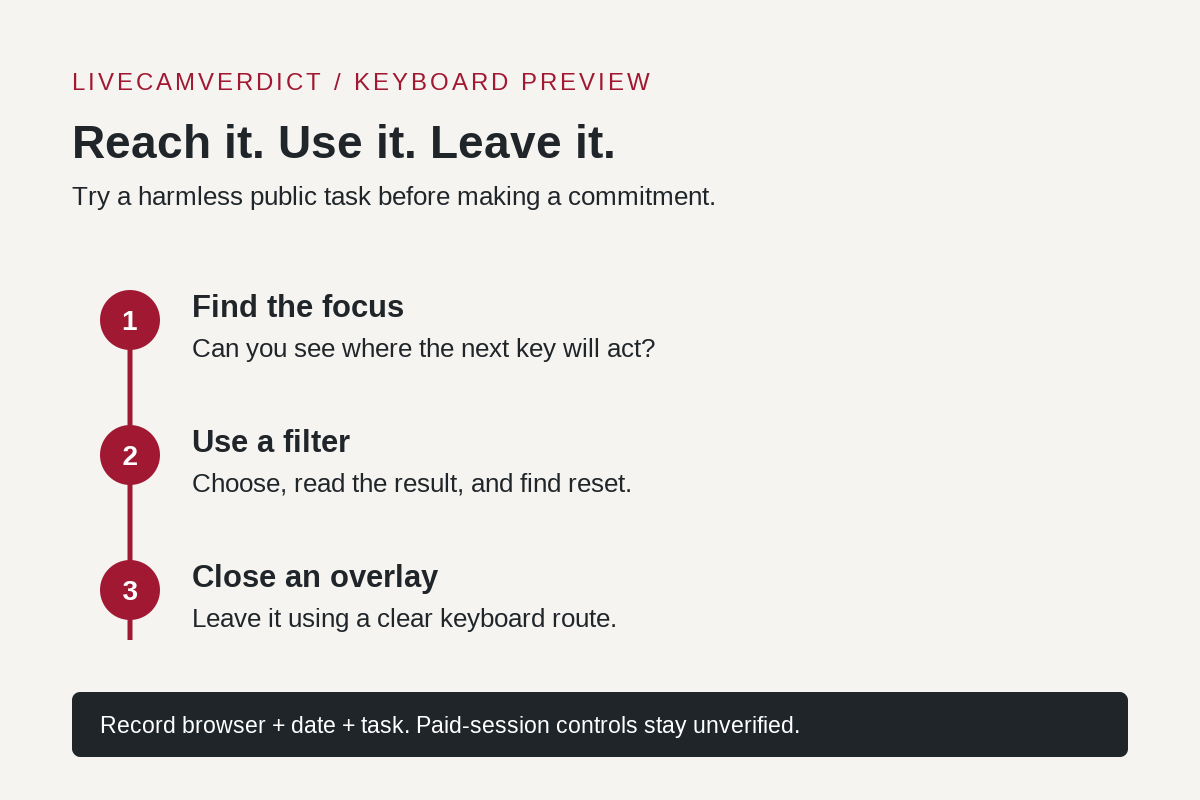
On the public pages, check whether you can see your current position, reach the controls you need, and leave an overlay. Keep paid-session controls unverified until you have evidence for them.
What can you check before creating an account?
You can often check navigation, public filters, help links and dismissible notices without creating an account. Start there. If an essential control is hard to reach using your usual keyboard setup, an appealing room preview does not resolve that obstacle. You do not need to make a purchase just to discover whether the public interface fits the way you browse.
November is a useful time to prepare a comparison method before year-end offers. We have not measured a new accessibility trend or tested named providers for this article. This is an original practical worksheet using current W3C guidance, checked on 13 November 2026. It helps you record a limited observation instead of giving a whole service a pass or fail from its homepage.
1. Pick a small task and record the setup
Choose a task you would actually perform: narrow a public list by language, open the explanation of a room mode, or find the help page. Keep registration, payments and camera sharing outside this first pass. Write down the browser, operating system, date and whether you are signed out. If you use assistive technology, keep your normal configuration and note it.
W3C describes keyboard access as being able to operate functionality through a keyboard interface, with a limited exception for functions depending on a movement path. For a reader choosing a service, the practical question is whether the actions you need have a usable route. A control responding to the mouse tells you little about that route.
Begin in a fresh tab at the known public address. Use your browser and system’s usual keyboard-navigation settings. Some configurations need keyboard navigation enabled for all controls. If focus never enters the page on several familiar sites, resolve that local setting before attributing the result to the service.
Reference: W3C WAI: Understanding Keyboard (opens in a new tab) · W3C WAI: Easy Checks, a first review of accessibility (opens in a new tab)
2. Follow the visible focus, one step at a time
Move forward with Tab and back with Shift+Tab. Look for the outline, underline or other persistent indication of the current control. W3C’s Focus Visible explanation identifies that indication as a way to know where keyboard actions will apply. You should not have to remember a position that disappears as soon as you stop moving.
Try a short sequence: the main navigation, a filter, its reset control and the help link. Do the labels make sense in that order? If a fixed banner covers the current item, note which item and your window size. Do not count random presses until something opens as a successful route; record the place where you lost track.
Before activating a link, read its purpose. Enter commonly activates links; buttons and menus can have their own keyboard conventions. Avoid experimenting with a control that could buy access, send a message or turn on a camera. This exercise is about understanding the route, not triggering consequential actions to see what happens.
Reference: W3C WAI: Understanding Focus Visible (opens in a new tab)
3. Check a filter and leave an overlay
If there is a language or status filter, reach it, change a harmless value and read the result. Can you identify the selected value and return to the full list? Record whether the page says there are no results or simply gives no feedback. Do not interpret an empty list as proof that a provider has no rooms anywhere.
Next try a harmless overlay such as help or preferences, where available. Find its close action and return to the underlying page. Escape is a common convention, but use any clearly documented keyboard exit. W3C’s No Keyboard Trap guidance concerns being able to leave a component through a keyboard interface; a mouse-only escape is not an equivalent route for this check.
If you appear stuck, stop the comparison task and use browser navigation to leave. Note the overlay’s name and how it opened. There is no benefit in repeatedly activating unknown controls. A precise report of a blocked route is more useful than concluding that every part of the service is unusable.
Reference: W3C WAI: Understanding No Keyboard Trap (opens in a new tab)
4. Compare observations, not badges
Use the same short task on each candidate so that you compare like with like. The worksheet below contains hypothetical observations, not results from real providers. It shows how to keep a public-page observation separate from a promise about the full service.
| Task | Useful observation | Still unknown |
|---|---|---|
| Reach a language filter | Selected a value and found reset while signed out | Account-only filters and mobile behavior |
| Close a help overlay | Reached a named close control and returned to navigation | Paid-session dialogs and error messages |
| Find billing information | Opened the explanation from the public footer | Checkout and ending an active charge |
5. Keep the next decision within the evidence
A successful public preview establishes only the route you tried under the recorded conditions. It does not establish screen-reader compatibility, every contrast requirement, mobile usability or paid-session control. W3C’s Easy Checks is explicitly a first review, not a complete accessibility assessment. Avoid turning a five-minute personal check into a compliance claim.
If a task fails, find the provider’s official accessibility or support contact through its known site. Explain the browser, control and step where progress stopped. You can describe the label without sending account details, room content or an uncropped private screenshot. Ask whether there is a documented alternative route for that action.
Finally, decide whether the unresolved action matters to your intended use. If it does, wait for a clear answer before committing money or information. If it does not, keep the limitation in your notes so you do not accidentally treat it as tested later. A useful comparison ends with a specific supported decision, even when that decision is to pause.
Reference: W3C WAI: Easy Checks, a first review of accessibility (opens in a new tab)
Questions & answers
Does this checklist certify a cam site as accessible?
No. It records a small personal keyboard check on public pages. Full accessibility assessment covers more requirements, pages, technologies and account states.
Should I start a paid session to test its stop control?
This public preview does not require a purchase. Keep paid-session controls unverified and ask for official instructions before making that commitment.
Sources & further reading
- W3C WAI: Understanding Keyboard (opens in a new tab)
- W3C WAI: Easy Checks, a first review of accessibility (opens in a new tab)
- W3C WAI: Understanding Focus Visible (opens in a new tab)
- W3C WAI: Understanding No Keyboard Trap (opens in a new tab)
References support the specific technical points identified above, not an endorsement of any platform. Consult current documentation for your device and browser.