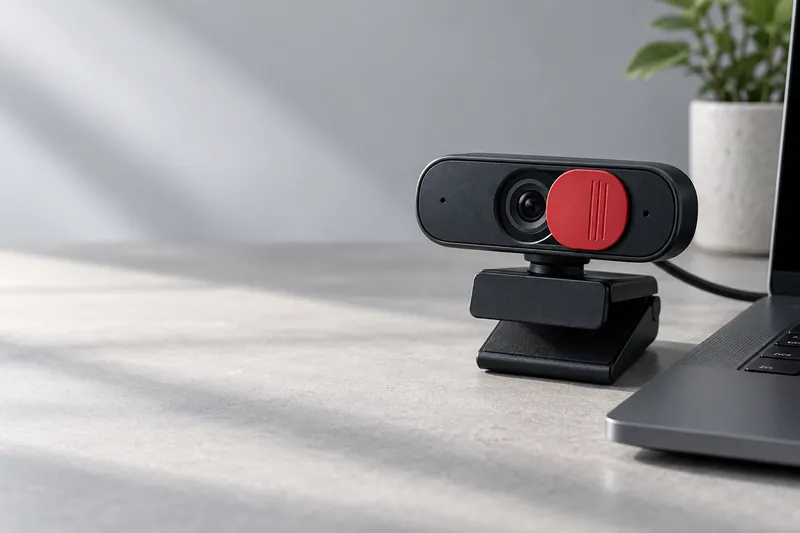
A permission prompt is a choice about a device. It is not a guarantee about the website receiving access.
Start with the permission request
Before allowing access, check the exact website address and decide whether the task actually needs your camera, microphone, or both. Do not approve a request simply because a page makes it prominent. If you are only reading information, there is no reason to grant camera access.
The browser media API normally requires a secure context and user permission before a site can obtain camera or microphone input. An HTTPS address is therefore important, but it does not establish a website's trustworthiness.
Reference: MDN: camera and microphone access (opens in a new tab)
Find the settings that apply to this site
In Chrome, review camera and microphone access under the browser's site settings. Firefox also offers per-site permission controls. Safari on Mac has website-specific Camera and Microphone settings. Labels and menu locations can vary with browser version and device.
Check the operating system's app permissions as well. A browser setting and an operating-system restriction are different layers; allowing one does not necessarily remove a restriction in the other. Use the current instructions for your own browser rather than an old screenshot.
Reference: Google Chrome: camera and microphone settings (opens in a new tab) · Mozilla: managing camera and microphone permissions (opens in a new tab) · Apple: website settings in Safari (opens in a new tab)
Separate muting from removing permission
Treat a session's mute or camera-off control as one control, and the browser's saved permission as another. A muted interface does not, by itself, tell you what permission will be available on a later visit.
When you finish, end the session, close pages you no longer need, and review saved permissions if you do not want continuing access. Check any browser or operating-system camera indicator that remains active. If it surprises you, stop and investigate rather than assuming a page label explains it.
Reference: W3C: Media Capture and Streams (opens in a new tab)
A short permission checklist
- Check the full domain before responding to a prompt.
- Grant only the devices needed for the task.
- Review saved permissions after using a shared computer.
- Keep device-permission questions separate from account-visibility settings.
- Use current official browser instructions when a control is missing.
Questions & answers
Does this website need my camera?
No. LiveCamVerdict publishes written guides and does not request camera or microphone access.
Does HTTPS mean a site is safe?
No. A secure connection and an assessment of the operator, policies, and service are different questions.
Sources & further reading
- MDN: camera and microphone access (opens in a new tab)
- Google Chrome: camera and microphone settings (opens in a new tab)
- Mozilla: managing camera and microphone permissions (opens in a new tab)
- Apple: website settings in Safari (opens in a new tab)
- W3C: Media Capture and Streams (opens in a new tab)
References support the specific technical points identified above, not an endorsement of any platform. Consult current documentation for your device and browser.